

We’ve had Full-Text index issues come up with surprising frequency lately. I thought I’d share the fix with all of you lovely people who read this blog. For reference, the customer in this example asked us to look at this problem on a server that is not managed by us.
Problem Statement
The client noticed the D (data) drive was running out of free space and they asked us to investigate. We found that the SQL Logs folder was much larger than we’d expect. A considerable amount of this data was not database files (.mdf, .ldf, .ndf), but rather log files (.log and anything with a .Number file extension):

Upon further investigation we could see that there were a large number of files starting with SQLFT%. These are full text error files:
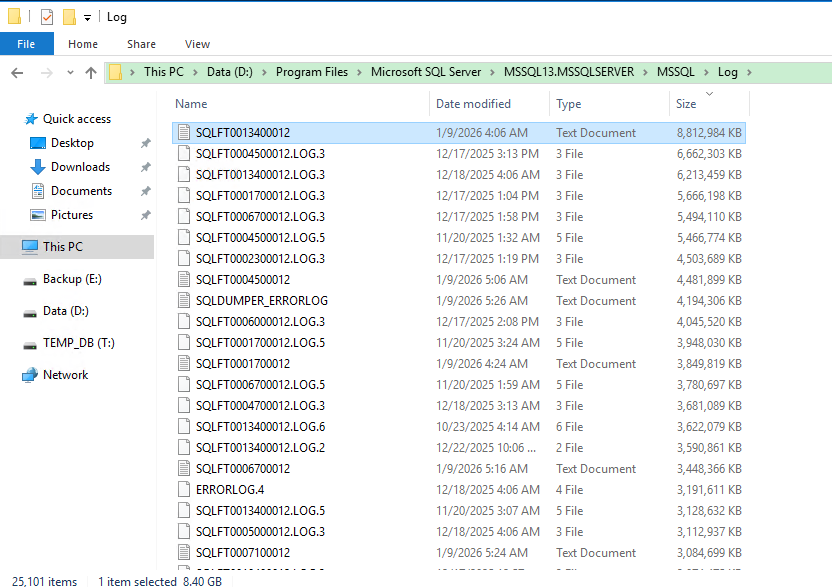
At this point we knew the culprit and had to dig into our full text indexes.
Investigation
SQL Error Log
If you also check your SQL Error log in SSMS, you will likely see a constant stop and restart of the Full-Text process:
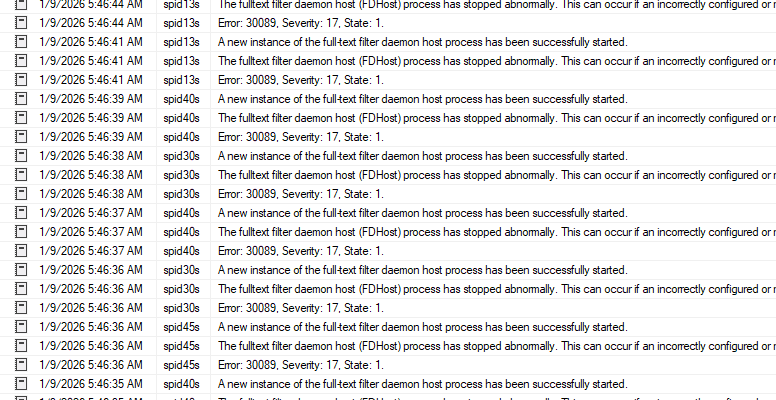
If we want specific details around which table/index is causing issues, we will have to check the Full-Text error log directly.
Reading Your Full-Text Error Log
There’s no GUI way of reading the Full-Text error log in SSMS. To do that, you’ll have to read the file off disk directly. And for that, you’ll need xp_cmdshell enabled, as follows:


EXEC SP_CONFIGURE 'show advanced options', 1;
RECONFIGURE;
EXEC SP_CONFIGURE 'xp_cmdshell', 1;
RECONFIGURE;
You can then read this file (and any others) using the query below:
EXEC xp_cmdshell 'type "D:\Program Files\Microsoft SQL Server\MSSQL13.MSSQLSERVER\MSSQL\Log\FDLAUNCHERRORLOG"';
The potential challenge here is: if you’ve got an issue with Full-Text then this file has the potential to be very large (in this scenario, it was 2.4GB). A file of that size may well make this approach prohibitive.
Manually Reading the Error Log
You won’t be able to open the FDLAUNCHERRORLOG file directly if it’s in use with SQL Server so in this case you will have to take a copy of the file and read the copy. However, there are file size limitations with tools such as Notepad. You will need to use an application that can deal with these large files (VScode, Notepad++, etc.) or something that’s specifically designed to open large text files (Large Text File Viewer, KLOGG, etc).
If you need to copy this text file to a different server, I highly recommend zipping the file first. The files are often multiple GB but because it’s a lot of repeated data, they compress really well. It’ll save you a bunch of time in data transfer over your network.
Error Log Output
Once you’re able to read the error log, you will see an output like this which gives you the specific table or indexed view which is the issue here:

This is where (at least one) of our issues are. It’s worth noting that there may well be more than one object involved here. We’re looking for the largest culprit, but once we that one we may well have others that will require our attention. We’ll deal with that when we come to it, though.
Remediation
Rebuilding Full-Text Catalogue
The first thing we want to do is to rebuild our Full-Text catalogue for the affected database. You can easily do this in SSMS:
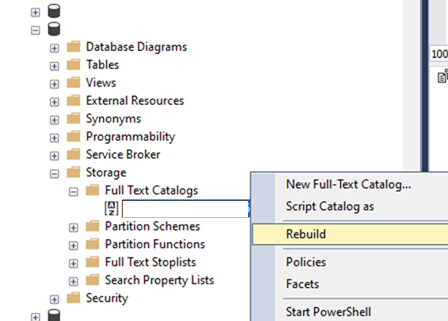
A rebuild should fix the issue. But if not, you’ll have to go to the next step.
Rebuilding Indexes
Luckily, in our scenario the table involved was small so this wasn’t a concern. However, rebuilding indexes comes with the dual caveats that, in larger environments, it can take a long time to complete a rebuild, and it will also consume resources and may potentially cause blocking. In this scenario, you’ll want to do this out of hours or inside a maintenance window.
An important note here: We’d recommend just rebuilding the clustered index if you have one. By doing this, the system will automatically rebuild all other indexes on the table. You can do this using the GUI:
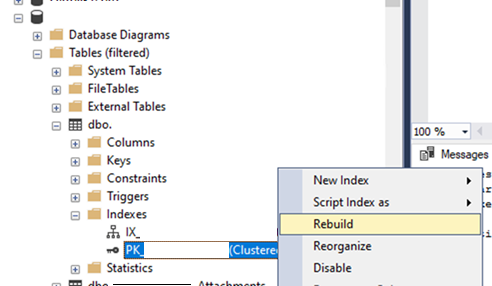
If you’re more comfortable working with code, then you can perform this manually too:
ALTER INDEX [IndexName] ON [dbo].[TableName] REBUILD
Once this is rebuilt (and assuming it returns without errors), you should be golden. You then want to follow the process below to allow you to cycle the log files.
Cycling your Full-Text Log Files
There is an undocumented stored procedure that lets you cycle your Full-Text log files the same way you are (hopefully) cycling your SQL Error Logs:
EXEC sp_fulltext_recycle_crawl_log @ftcat = ‘FullText CATALOG Name;
This will deallocate the old log files and create new ones. At this point you’re free to delete or move these log files that are filling the drive to free up the disk space. And don’t worry: If you try to delete a file that’s currently in use by SQL Server (the current log files, for example) you won’t be able to.
Cycling your Full-Text master error log
There is no way of doing this within SSMS. You can do it with this command:
EXEC sp_fulltext_service 'cycle_errorlog';
This will allow you to cycle out this error log, too, if you need to delete the file to free up space.
At this point, we have fixed the full text indexes on this database. We may, however, have issues with multiple databases. If we check the SQL Error log and see new errors appearing, then we haven’t quite fixed the whole problem. We will want to go through this process again (check the logs, rebuild indexes, cycle error log files) until we’ve fixed all our problems.
DBCC CHECKTABLE
Once we’ve fixed all the issues with Full-Text search it’s a great idea to perform a DBCC CHECKTABLE on the affected tables to ensure we’re not dealing with a corruption issue. CHECKTABLE is much lighter than a full CHECKDB, but it still does read the entire table to perform the check. Yes, this is another process that we would want to be careful and perform outside of working hours if at all possible if the table we’re dealing with is large in our environment.
USE [DBName]

GO

DBCC CHECKTABLE (‘TableName’) WITH WITH ALL_ERRORMSGS, NO_INFOMSGS
This will return any errors encountered while also avoiding any noise from informational messages.
You can see the output in the error log:

Final Thoughts
If you discover corruption, review this post I wrote on the topic. If you don’t, you should be good to go — and give yourself a pat on your back for a job well done!
And, if you find you can’t solve a Full-Text index issue yourself, we’re always standing by to assist you.