
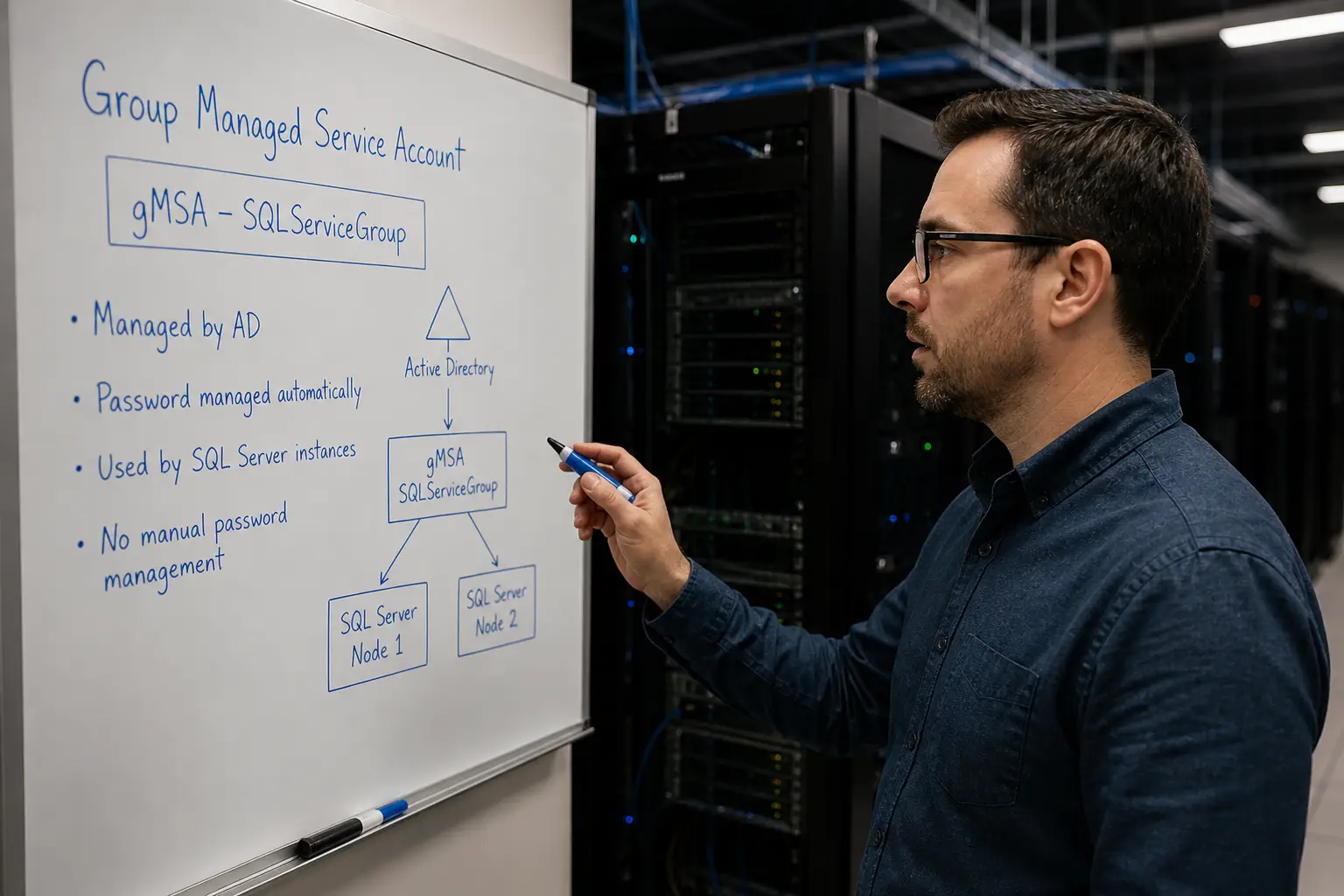
Service account management is one of the quietest ways a SQL Server estate goes wrong. Passwords get set once during install, written down somewhere (or worse, not written down), and then never rotated. The DBA who built the environment leaves. A security audit shows up. Suddenly you’re staring at a hundred service account passwords nobody remembers, and the prospect of changing them all on a maintenance window nobody wants to schedule. Group Managed Service Accounts (gMSAs) solve this.
They’ve been a fully supported option for SQL Server since 2014, they work with Failover Cluster Instances and Availability Groups, and Active Directory rotates the passwords for you on a schedule you control. We use them by default on every new SQL Server build at SSG.
And yet, in a decade of Health Checks, we still rarely see them deployed. The most common reasons we hear: “I tried it once and SPNs broke,” or, “I wasn’t sure it would work with our AG.” Both are addressable. Here’s what you need to know to deploy gMSAs successfully.
Why gMSAs Win
A gMSA is an Active Directory account whose password is generated by the Key Distribution Service (KDS), rotated automatically (default every 30 days), and retrievable only by computer accounts you explicitly authorize. That gives you four things:
- Passwords you don’t know, can’t leak, and can’t forget to rotate. The password is 240 bytes of cryptographic randomness. No human ever sees it.
- No service restart on rotation. When AD rotates the password, the SQL Server service keeps running. This is the part most people don’t believe until they see it.
- Automatic SPN management. The account can register and update its own Service Principal Names, eliminating one of the most painful manual chores in Kerberos troubleshooting.
- Cluster-aware. Unlike standalone Managed Service Accounts (sMSAs), a gMSA can be used by multiple computers, which means it works for Failover Cluster Instances and Availability Group replicas.
If you’re still managing SQL Server service accounts as regular AD user accounts with a 90-day password expiry policy and a coordinated change window, you’re doing work that AD will do for you free.
Prerequisites
Before you create your first gMSA, the domain needs a KDS root key. This is a one-time, domain-wide setup step. By default, AD enforces a 10-hour wait after key creation before the key becomes usable, which is a safety mechanism to ensure replication completes across all domain controllers.


# On a domain controller (or any machine with AD module)
# Production: just run this and wait 10 hours
Add-KdsRootKey -EffectiveImmediately

# Lab/test only: bypass the 10-hour wait
Add-KdsRootKey -EffectiveTime ((Get-Date).AddHours(-10))
Verify a key exists before proceeding:
Get-KdsRootKeyYou also need:
- Windows Server 2012 or higher on the SQL Server hosts (we strongly recommend 2019+)
- SQL Server 2014 or higher (every supported version qualifies)
- The RSAT Active Directory PowerShell module on whichever machine you’re using to create the accounts
Account Structure: One Per Service, Per Server (Mostly)
The pattern we deploy at SSG: a separate gMSA for each SQL Server service type (Database Engine, SQL Agent, SSRS, SSAS) on each standalone server. For clustered services — FCIs and AG replicas — we use a single gMSA shared across all nodes in that cluster.
Why separate accounts per service type? Least privilege. Your SQL Agent account often needs different rights than your Database Engine account (proxy operations, file system access for job output, etc.). Putting them on the same account means you grant the union of all permissions to both, which is exactly what we’re trying to avoid.
Why a single account across cluster nodes? Because all nodes need to authenticate as the same identity to the network. The whole point of an FCI or AG is that clients connect to a virtual name that can move; the underlying service identity must be consistent.
A naming convention that holds up over time:
| Service | Standalone | Clustered (FCI/AG) |
|---|---|---|
| Database Engine | SQLEng_<server> | SQLEng_<cluster> |
| SQL Agent | SQLAgent_<server> | SQLAgent_<cluster> |
| SSRS / SSAS | SSRS_<server> | SSAS_<cluster> |
Heads up: gMSA sAMAccountName is capped at 15 characters (with a $ suffix that AD adds automatically). Long server names will collide with this. Plan your naming convention before you start creating accounts. That is why the suggested naming convention above does not have a lot of extra fluff like gmsa_svc_sql_<server> or the like. Every gmsa account will have a $ at the end so that’s how it is clear that it is a service account and is a gmsa.
Creating the Account
Two-step process: create an AD security group containing the computer accounts that will use the gMSA, then create the gMSA itself referencing that group. The security group is the indirection layer that makes gMSAs cluster-friendly — adding a new node to an FCI or AG later means adding its computer account to the group, not creating a new gMSA.
# 1. Create the security group, add computer accounts
New-ADGroup -Name 'gsg_SQL_PRODAG01' \
    -GroupScope Global -GroupCategory Security \
    -Path 'OU=Service Groups,DC=contoso,DC=com'

Add-ADGroupMember -Identity 'gsg_SQL_PRODAG01' \
    -Members 'SQLNODE01$','SQLNODE02$','SQLNODE03$'

# 2. Create the gMSA
New-ADServiceAccount -Name 'SQLEng_PRODAG01' \
    -DNSHostName 'PRODAG01.contoso.com' \
    -PrincipalsAllowedToRetrieveManagedPassword 'gsg_SQL_PRODAG01' \
    -ManagedPasswordIntervalInDays 30 \
    -ServicePrincipalNames @(
        'MSSQLSvc/PRODAG01.contoso.com',
        'MSSQLSvc/PRODAG01.contoso.com:1433'
    ) \
    -Path 'OU=Service Accounts,DC=contoso,DC=com'

# 3. Reboot each node OR run gpupdate /force + klist purge -li 0x3e7
#    so the computer picks up its new group membership
That last step is the one most people skip and then spend an hour debugging. Computer Kerberos tickets are issued at boot. Adding a computer to a new security group requires a reboot or a TGT refresh before the computer can retrieve the gMSA password.
Then on each SQL Server host:
# Install the AD PowerShell module if not present
Install-WindowsFeature RSAT-AD-PowerShell

# Install and verify the gMSA on this host
Install-ADServiceAccount -Identity 'SQLEng_PRODAG01'
Test-ADServiceAccount -Identity 'SQLEng_PRODAG01'   # must return True
Test-ADServiceAccount returning True is the gate. If it returns False, do not proceed to the SQL Server side — the problem is upstream in AD or group membership.
Assigning the gMSA to SQL Server
Use SQL Server Configuration Manager. Always. Not services.msc, not Server Manager, not the Services snap-in. SQL Server Configuration Manager grants the necessary local rights (Log on as a service, Lock pages in memory, file system ACLs, registry ACLs) automatically. The other tools don’t, and you’ll spend the rest of your afternoon figuring out why SQL Server won’t start.
In Configuration Manager: right-click the SQL Server service, Properties, Log On tab, enter CONTOSO\SQLEng_PRODAG01$ in the account name field. Two things to remember:
- Always include the trailing $. This is how Windows distinguishes a managed service account from a regular user account.
- Leave the password fields blank. If you type anything in them, the dialog will reject the save.
Repeat for SQL Agent, SSRS, etc., each with its own gMSA. Then restart the services.
Availability Groups and FCIs: The Extra Step
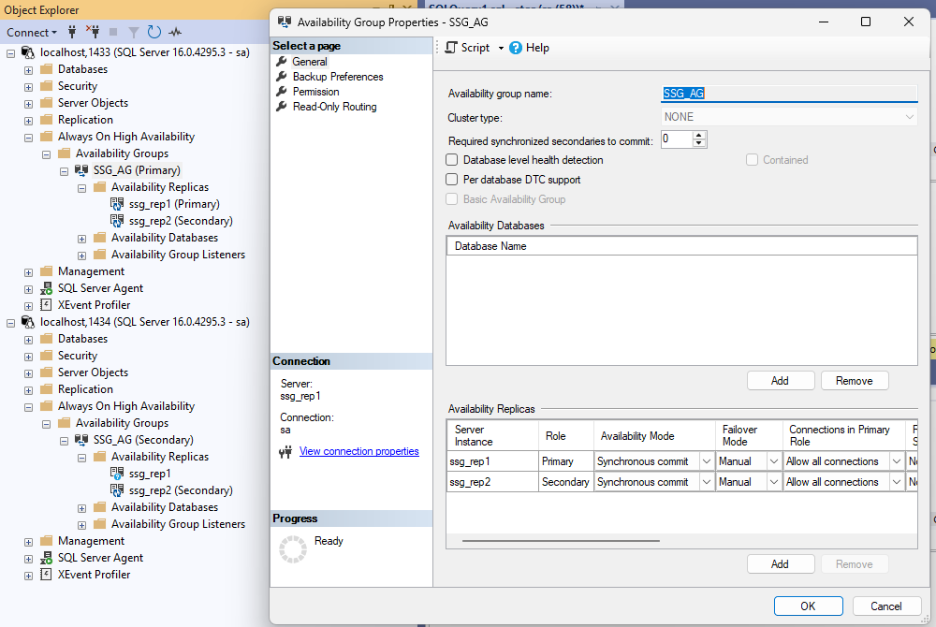
For Always On Availability Groups, after switching the Database Engine service to a gMSA, you need to grant the new account CONNECT permission on the HADR endpoint on every replica. This is the step that breaks AGs silently — the cluster looks fine, but synchronization stops.
USE master;

GO

CREATE LOGIN [CONTOSO\svc_SQL_PRODAG01$] FROM WINDOWS;

GRANT CONNECT ON ENDPOINT::Hadr_endpoint TO [CONTOSO\svc_SQL_PRODAG01$];

GO
Run that on every replica. If you forget one, the missed replica will fall out of sync the moment its old service account credential expires.
For FCIs, no equivalent step is needed — the gMSA is just the service account, and the cluster resource picks it up.
Deploying at Scale with dbatools
If you’re rolling gMSAs across an estate, do it with dbatools. The Update-DbaServiceAccount command handles the local rights assignment correctly — same as Configuration Manager, but scriptable across many servers in a single pipeline.
# Switch the Database Engine on a list of servers to a gMSA
$instances = 'SQLNODE01','SQLNODE02','SQLNODE03'

Get-DbaService -ComputerName $instances -Type Engine |
    Update-DbaServiceAccount -Username 'CONTOSO\SQLEngPRODAG01$'

# Verify it took
Get-DbaService -ComputerName $instances -Type Engine |
    Select-Object ComputerName, ServiceName, StartName, State
Note the lack of a -Password parameter. dbatools detects the trailing $ and treats the account as a managed service account, skipping the password prompt entirely. This is the kind of small touch that makes dbatools the right tool for this job.
Common Pitfalls and How to Diagnose Them
“Cannot generate SSPI context”
This is the canonical Kerberos failure. After switching to a gMSA, clients can’t connect via Kerberos and either fall back to NTLM (slow, less secure) or fail outright. The cause is almost always SPN-related — either the SPNs didn’t transfer to the gMSA, or duplicates exist on the old account.
Diagnose:
# Check what authentication SQL is using
SELECT auth_scheme FROM sys.dm_exec_connections WHERE session_id = @@SPID;
-- Should return KERBEROS, not NTLM

# Find any SPN registered for your SQL service
setspn -Q MSSQLSvc/PRODAG01.contoso.com
setspn -Q MSSQLSvc/PRODAG01.contoso.com:1433

# Find duplicates (these break Kerberos entirely)
setspn -XFix: remove SPNs from the old service account, ensure they’re on the gMSA. If you registered SPNs in the New-ADServiceAccount command, AD will refresh them automatically going forward — that’s the gMSA SPN management benefit. If you didn’t, register them manually now and let AD take it from there.
Linked servers and cross-server delegation
If your SQL Server uses linked servers configured for Windows authentication pass-through, you need Kerberos delegation set on the gMSA. In AD Users and Computers, the gMSA must be configured for constrained delegation to the target SQL Server’s MSSQLSvc SPN. This is the same requirement as for any service account — gMSAs don’t change it — but it’s worth checking before you migrate, because constrained delegation settings don’t migrate automatically when you change accounts.
Service won’t start after the switch
Almost always one of:
- The gMSA wasn’t installed on the host (skipped Install-ADServiceAccount)
- The computer account isn’t in the security group (or wasn’t rebooted after being added), or
- The account was assigned via the wrong tool and didn’t get Log on as a service.
The error in the event log is usually generic; the diagnostic order is: confirm Test-ADServiceAccount returns True, confirm group membership, redo the assignment via Configuration Manager.
When Not to Use a gMSA
Two scenarios where we don’t recommend gMSAs:
- Servers in domains where you don’t control the KDS root key. You’ll need a Domain Admin to create that one-time. If your AD team won’t, it’s a non-starter.
- Cross-forest scenarios. gMSAs do not work across AD forest boundaries. If your SQL Server needs to authenticate to resources in a different forest, you need a regular service account or a different design.
Bottom Line
gMSAs are the right default for service accounts on any domain-joined SQL Server built in the last decade. The setup overhead is real but one-time. The ongoing operational savings — no password rotations, no expiry surprises, no “who has the spreadsheet of service account passwords” conversations — pay for it many times over.
If you’re standing up a new SQL Server in 2026 and you’re not using a gMSA, you should have a specific reason why. “We’ve always done it this way” isn’t one.
Need help rolling gMSAs out across an existing estate?
SSG has done this dozens of times across customer environments — including the messy migrations from legacy service accounts on production AGs. Get in touch with us and we’d be happy to support you.





This Post Has 2 Comments
Pingback: A Primer on Group Managed Service Accounts – Curated SQL
Pingback: Shop Talk: 2025-05-04 – Shop Talk with TriPASS
Comments are closed.