
Why use PowerShell? I’ve lost count of how many times I have been asked this question. Most of the time, the inquirer is asking out of genuine curiosity. Other times, there is some obvious (negative) judgement in the question. Either way, my answer is the same: “It’s easier.”
I will go through a couple of common scenarios that we frequently encounter and give T-SQL and PowerShell solutions.
Is Max Memory Set Appropriately?
Let’s start small: Finding max memory values and evaluating if they are appropriate.
T-SQL Script:


SELECT mem.total_physical_memory_kb / 1024 'server memory (MB)'

,configs.value_in_use 'max server memory (MB)'

FROM sys.dm_os_sys_memory mem

cross apply (

SELECT value_in_use

FROM sys.configurations

WHERE name = 'max server memory (MB)'

) configs
T-SQL Results:

With that information, I can make a determination if Max Memory is set appropriately. If not, I can calculate an appropriate value and go implement the change.
PowerShell Script:
Test-DbaMaxMemory -SqlInstance SSG-LT-KBURWELLPowerShell Results:

Again, this is a basic example, and the T-SQL isn’t exactly complex, but the PowerShell is much easier and even gives you a recommendation for Max Memory.
LastFullBackup
The T-SQL for this is also rather easy, but the tricky part is running it against multiple instances and returning a single result set.
T-SQL Script:
SELECT database_name

,MAX(backup_start_date) latest_full

FROM msdb.dbo.backupset s

WHERE s.type = 'D'

GROUP BY s.database_name
T-SQL Results:

As I mentioned, this is a very simple script, but this is only for one instance. If you want to run this against multiple instances, you will need to do some additional setup, such as configuring linked servers or a Central Management Server, neither of which I will be detailing here. Instead, I will show how easy it is to query multiple instances in PowerShell.
PowerShell Script:
Get-DbaLastBackup -SqlInstance SSG-LT-KBURWELLPowerShell Results:

One simple command and I get the same info, plus details for latest diff and log backups as well. Now let’s make a couple of changes so we can get results for multiple instances and make the output a little more friendly.
PowerShell Script:
Get-DbaLastBackup -SqlInstance SSG-LT-KBURWELL,SSG-LT-KBURWELL\MSSQLSERVER01 -ExcludeDatabase msdb,model,master | Format-TableI made 3 minor changes to the script, but it is still a single line of code and now reads from multiple instances and formats the output as a table.
- Change 1: Added an additional SQL instance to the -SqlInstance parameter.
- Change 2: Added the -ExcludeDatabase parameter and passed in the system databases.
- Change 3: Piped the results to Format-Table
PowerShell Results:

Let’s take it one step further and generate a spreadsheet from the results.
PowerShell Script:
Get-DbaLastBackup -SqlInstance SSG-LT-KBURWELL,SSG-LT-KBURWELL\MSSQLSERVER01 -ExcludeDatabase msdb,model,master | Export-Excel -Path C:\Temp\LastBackups.xlsxInstead of piping the results to Format-Table, I am piping the results to Export-Excel and providing a file path and name. Now I have a spreadsheet that I can share with whomever might want to see it.
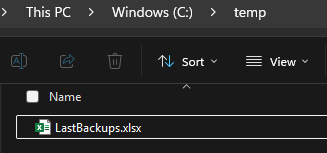
Getting results from SSMS into Excel is obviously possible, it just requires extra manual steps. It’s much quicker to just have PowerShell do it for you.
“It’s easier”
When I say PowerShell is easier, I’m not just talking about the simplicity of commands. I’m also talking about how easy it is to add in functionality, such as querying multiple instances, combining the results, and exporting them to Excel.
If you are perfectly happy using T-SQL and SSMS, then by all means, continue to do so. But, I do encourage you to explore PowerShell, specifically the DBATools module. I will be following up this post with more complex Powershell examples such as copying databases between SQL instances and keeping AG objects synchronized between replicas. Stay tuned for more answers to the question “why use PowerShell?”