
We all know developing/testing in Prod is frowned upon, and none of us have ever done it.
The temptation is always there, though, usually because there is no dev or test environment in existence, or if there is, it is too different from Prod to perform an accurate test. As consultants, we run into this multiple times a day because we see so many different environments.
Recently, I needed to test a script to synchronize database objects between replicas in an Availability Group (AG), but the client did not have a non-prod AG. Not wanting to perform a “resume-generating action,” I opted to build my own local AG instead.
I am not a Docker expert by any means, but between Docker and DBATools, creating an AG is incredibly easy. I will step through the PowerShell scripts that I put together to accomplish this and show some SSMS screenshots along the way.You can download both scripts here: docker-ag-scripts
Getting Started: Install Docker and DBATools
If you haven’t already, make sure you have winget and NuGet installed.
Open PowerShell as admin however you prefer. I’ll be using VS Code.
Run the following code to install Docker and the DBATools module. Note: This will require a reboot.
#confirm running elevated - winget install for Docker Desktop requires this
$isAdmin = ([Security.Principal.WindowsPrincipal][Security.Principal.WindowsIdentity]::GetCurrent()).IsInRole([Security.Principal.WindowsBuiltInRole]::Administrator)
if (-not $isAdmin) {
    Write-Warning "Not running as Administrator. Re-launch PowerShell as Administrator and re-run this script."
    return
}

#install Docker Desktop
winget install -e --id Docker.DockerDesktop

#install dbatools
Install-Module dbatools -Scope CurrentUser -AllowClobber

Write-Host "Prereqs installed. Reboot now." -ForegroundColor Yellow
Write-Host "Seriously, reboot your computer." -ForegroundColor Red
Did you reboot? Because you should.
Building the AG in Docker
Now that Docker is installed and we’ve rebooted, let’s get the AG built.
First, we need to do a little DBATools setup and make sure Docker is running. If it isn’t, the script will start it for us.
#setup
Import-Module dbatools
Set-DbatoolsInsecureConnection -SessionOnly

#make sure docker is running
#check if Docker is running; if not, launch it and wait (2 min timeout)
docker info *>$null
if ($LASTEXITCODE -ne 0) { Start-Process "C:\Program Files\Docker\Docker\Docker Desktop.exe" }
$deadline = (Get-Date).AddMinutes(2)
while ($LASTEXITCODE -ne 0 -and (Get-Date) -lt $deadline) { Start-Sleep 3; docker info *>$null }
if ($LASTEXITCODE -ne 0) { throw "Docker did not start within 2 minutes." }
Next, pull down the SQL Server 2022 image and verify it’s in Docker.
#pull sql server 2022 image
docker pull mcr.microsoft.com/mssql/server:2022-latest

#verify image
docker images

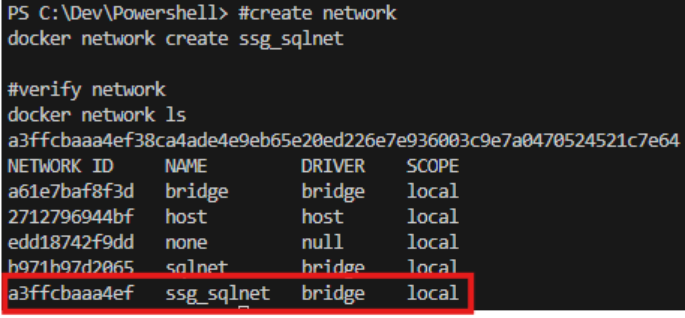
Then create a Docker network so the containers can talk to each other, and verify it.
#create network
docker network create ssg_sqlnet
nm
#verify network
docker network ls
Spinning Up the Containers
With the boring stuff out of the way, we can actually start on the AG, beginning with the containers. These will be the SQL instances that make up our AG. Note: The passwords in these scripts are hardcoded for a throwaway local lab. Don’t reuse them anywhere real.
#create container 1
docker run -e "ACCEPT_EULA=Y" `

-e "MSSQL_PID=Developer" `
-e "MSSQL_SA_PASSWORD=LocalPassword4SQL!" `
-e "MSSQL_AGENT_ENABLED=true" `
--hostname ssg_rep1 `
--name ssg_rep1 `
--network ssg_sqlnet `
-p 1433:1433 `
-d mcr.microsoft.com/mssql/server:2022-latest


#create container 2
docker run -e "ACCEPT_EULA=Y" `
-e "MSSQL_PID=Developer" `
-e "MSSQL_SA_PASSWORD=LocalPassword4SQL!" `
-e "MSSQL_AGENT_ENABLED=true" `
--hostname ssg_rep2 `
--name ssg_rep2 `
--network ssg_sqlnet `
-p 1434:1433 `
-d mcr.microsoft.com/mssql/server:2022-latest
The output of these two commands is just a long string of characters (the container IDs). The containers should be running, but you can verify with this command:
#confirm containers are running
docker ps

At this point, we can connect to our SQL instances in SSMS using localhost,1433 and localhost,1434 with the sa login:
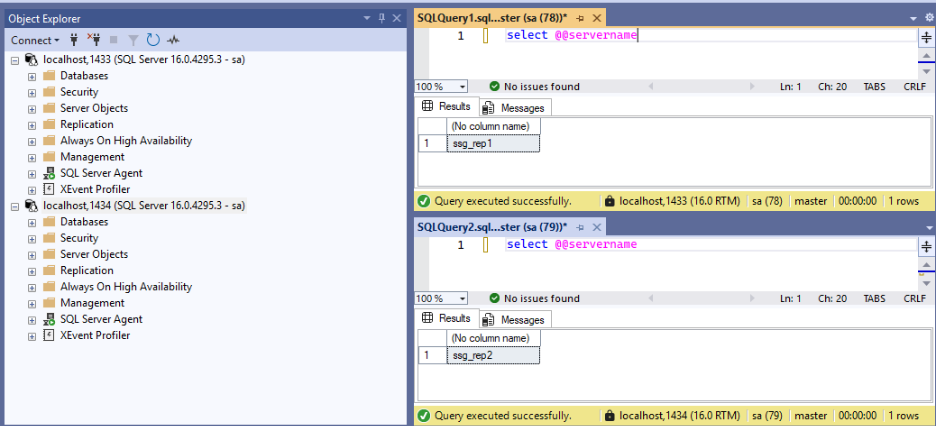
Now that we know our instances are up and running, let’s get them into an AG.
Enabling HADR
Enable HADR features and restart the instances.
#create the ag
#enable hadr

docker exec ssg_rep1 /opt/mssql/bin/mssql-conf set hadr.hadrenabled 1 docker exec ssg_rep2 /opt/mssql/bin/mssql-conf set hadr.hadrenabled 1

#restart both instances
docker restart ssg_rep1
docker restart ssg_rep2

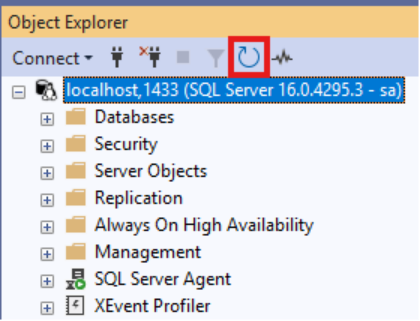
To verify it worked, refresh both instances in SSMS:
Then click the + to expand Always On High Availability:
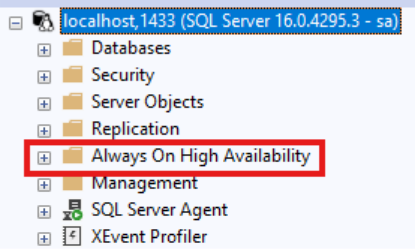
If you get the following window, then something went wrong:
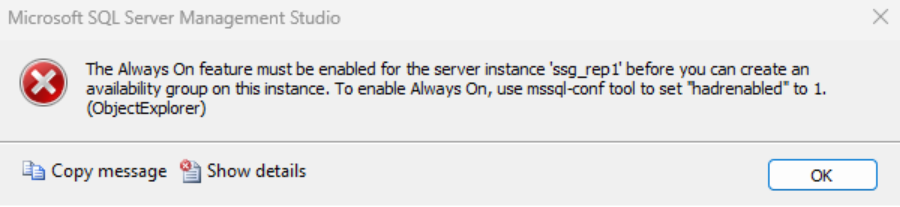
That’s not good.
If everything went well, the menu should just expand, indicating that HADR features are working:

That’s better.
Swapping Certs
Now we need to create and swap certs, which can be a little tricky with Docker, but PowerShell and DBATools make it very easy. This next section of the script creates the certs on each instance, then copies them between instances using a local directory on your machine as a go-between. Note: You will need to respond to a couple of prompts:
#set credentials: sa login, master key password, cert private key password
$cred    = New-Object System.Management.Automation.PSCredential("sa", (ConvertTo-SecureString "LocalPassword4SQL!" -AsPlainText -Force))
$keyPwd  = ConvertTo-SecureString "KeyPassword4SQL!" -AsPlainText -Force
$certPwd = ConvertTo-SecureString "CertPassword4SQL!" -AsPlainText -Force

#ssg_rep1: master key + cert, then back up to container data folder
New-DbaDbMasterKey -SqlInstance "localhost,1433" -SqlCredential $cred -SecurePassword $keyPwd -Confirm:$false
New-DbaDbCertificate -SqlInstance "localhost,1433" -SqlCredential $cred -Name "dbm_certificate" -Subject "dbm"

Backup-DbaDbCertificate -SqlInstance "localhost,1433" -SqlCredential $cred -Certificate "dbm_certificate" -Path "/var/opt/mssql/data" -EncryptionPassword $certPwd

#ssg_rep2: master key + cert (different name), then back up
New-DbaDbMasterKey -SqlInstance "localhost,1434" -SqlCredential $cred -SecurePassword $keyPwd -Confirm:$false
New-DbaDbCertificate -SqlInstance "localhost,1434" -SqlCredential $cred -Name "dbm_certificate2" -Subject "dbm2"
Backup-DbaDbCertificate -SqlInstance "localhost,1434" -SqlCredential $cred -Certificate "dbm_certificate2" -Path "/var/opt/mssql/data" -EncryptionPassword $certPwd

#pull both cert pairs to host, then cross-copy into the other container
mkdir C:\Dev\certs -Force

docker cp "ssg_rep1:/var/opt/mssql/data/localhost,1433-master-dbm_certificate.cer"  C:\Dev\certs\dbm_certificate.cer
docker cp "ssg_rep1:/var/opt/mssql/data/localhost,1433-master-dbm_certificate.pvk"  C:\Dev\certs\dbm_certificate.pvk
docker cp "ssg_rep2:/var/opt/mssql/data/localhost,1434-master-dbm_certificate2.cer" C:\Dev\certs\dbm_certificate2.cer
docker cp "ssg_rep2:/var/opt/mssql/data/localhost,1434-master-dbm_certificate2.pvk" C:\Dev\certs\dbm_certificate2.pvk
docker cp C:\Dev\certs\dbm_certificate.cer  ssg_rep2:/var/opt/mssql/data/
docker cp C:\Dev\certs\dbm_certificate.pvk  ssg_rep2:/var/opt/mssql/data/
docker cp C:\Dev\certs\dbm_certificate2.cer ssg_rep1:/var/opt/mssql/data/
docker cp C:\Dev\certs\dbm_certificate2.pvk ssg_rep1:/var/opt/mssql/data/

#import ssg_rep2 cert into ssg_rep1
Restore-DbaDbCertificate -SqlInstance "localhost,1433" -SqlCredential $cred -Path "/var/opt/mssql/data/dbm_certificate2.cer" -DecryptionPassword $certPwd

#import ssg_rep1 cert into ssg_rep2
Restore-DbaDbCertificate -SqlInstance "localhost,1434" -SqlCredential $cred -Path "/var/opt/mssql/data/dbm_certificate.cer" -DecryptionPassword $certPwd

Verify the cert swap was successful:
#verify cert swap

Get-DbaDbCertificate -SqlInstance "localhost,1433" -SqlCredential $cred | Where-Object Name -like "dbm_certificate*" | Select-Object SqlInstance, Database, Name, Subject, LastBackupDate | format-table

Get-DbaDbCertificate -SqlInstance "localhost,1434" -SqlCredential $cred | Where-Object Name -like "dbm_certificate*" | Select-Object SqlInstance, Database, Name, Subject, LastBackupDate | format-table

Creating the Endpoints
Now for the endpoints:
#create endpoints

#ssg_rep1
New-DbaEndpoint -SqlInstance "localhost,1433" -SqlCredential $cred -Name "hadr_endpoint" -Type DatabaseMirroring -Port 5022 -Owner sa -Certificate "dbm_certificate" -EncryptionAlgorithm Aes

#ssg_rep2
New-DbaEndpoint -SqlInstance "localhost,1434" -SqlCredential $cred -Name "hadr_endpoint" -Type DatabaseMirroring -Port 5022 -Owner sa -Certificate "dbm_certificate2" -EncryptionAlgorithm Aes

#start endpoints
Get-DbaEndpoint -SqlInstance "localhost,1433" -SqlCredential $cred -Endpoint "hadr_endpoint" | Start-DbaEndpoint
Get-DbaEndpoint -SqlInstance "localhost,1434" -SqlCredential $cred -Endpoint "hadr_endpoint" | Start-DbaEndpoint
Verify the endpoints were created and are running:
#verify endpoints are running

Get-DbaEndpoint -SqlInstance "localhost,1433" -SqlCredential $cred -Endpoint "hadr_endpoint" | Select-Object SqlInstance, Name, EndpointState, Port, Fqdn | format-table
Get-DbaEndpoint -SqlInstance "localhost,1434" -SqlCredential $cred -Endpoint "hadr_endpoint" | Select-Object SqlInstance, Name, EndpointState, Port, Fqdn | format-table

Putting It All Together
Finally, we can create the AG!
#create ag
$params = @{
    Primary                 = "localhost,1433"
    PrimarySqlCredential    = $cred
    Secondary               = "localhost,1434"
    SecondarySqlCredential  = $cred
    Name                    = "SSG_AG"
    ClusterType             = "None"
    SeedingMode             = "Automatic"
    FailoverMode            = "Manual"
    Confirm                 = $false
}

New-DbaAvailabilityGroup @params
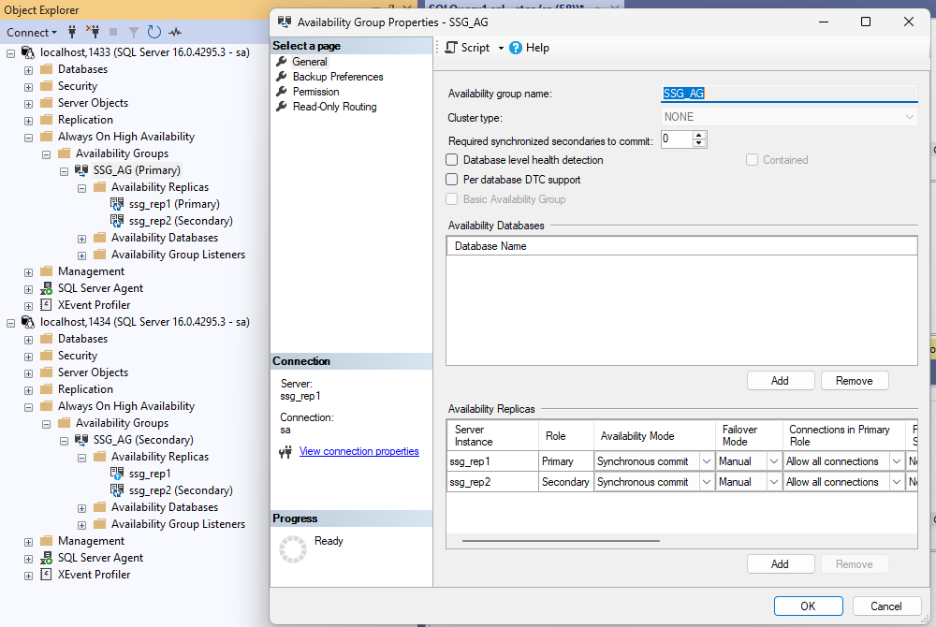
There we have it: a two-node AG running in Docker.
Adding Aliases
The final step to make this a functioning AG is to configure an alias for each instance, so we don’t need to keep using ‘localhost,1433’ and ‘localhost,1434’ to connect.
#create alias for each instance
New-Item -Path "HKLM:\SOFTWARE\Microsoft\MSSQLServer\Client\ConnectTo" -Force
Set-ItemProperty -Path "HKLM:\SOFTWARE\Microsoft\MSSQLServer\Client\ConnectTo" -Name "ssg_rep2" -Value "DBMSSOCN,localhost,1434"
Set-ItemProperty -Path "HKLM:\SOFTWARE\Microsoft\MSSQLServer\Client\ConnectTo" -Name "ssg_rep1" -Value "DBMSSOCN,localhost,1433"

#32-bit clients
New-Item -Path "HKLM:\SOFTWARE\WOW6432Node\Microsoft\MSSQLServer\Client\ConnectTo" -Force
Set-ItemProperty -Path "HKLM:\SOFTWARE\WOW6432Node\Microsoft\MSSQLServer\Client\ConnectTo" -Name "ssg_rep2" -Value "DBMSSOCN,localhost,1434"
Set-ItemProperty -Path "HKLM:\SOFTWARE\WOW6432Node\Microsoft\MSSQLServer\Client\ConnectTo" -Name "ssg_rep1" -Value "DBMSSOCN,localhost,1433"
Set-ItemProperty -Path "HKLM:\SOFTWARE\WOW6432Node\Microsoft\MSSQLServer\Client\ConnectTo" -Name "ssg_rep1" -Value "DBMSSOCN,localhost,1433"
Now we can connect to each node in SSMS using its replica name.
Go Break Something
That’s it! You now have a two-node AG running locally that you can break, rebuild, and test against as much as you want, no resume-generating actions required. When you’re done with it, docker rm -f ssg_rep1 ssg_rep2 followed by docker network rm ssg_sqlnet will tear the whole thing down. Stay tuned for the follow-up on keeping AG objects synchronized between replicas, which is the script that started all of this.